Home/Help/Download the restored files
Download the restored files
Restore N photos writes the first N photos in date order. On a free browser that is once a day, and the video in the scan is left out. An overlay on a photo this job writes is composited into the JPEG.
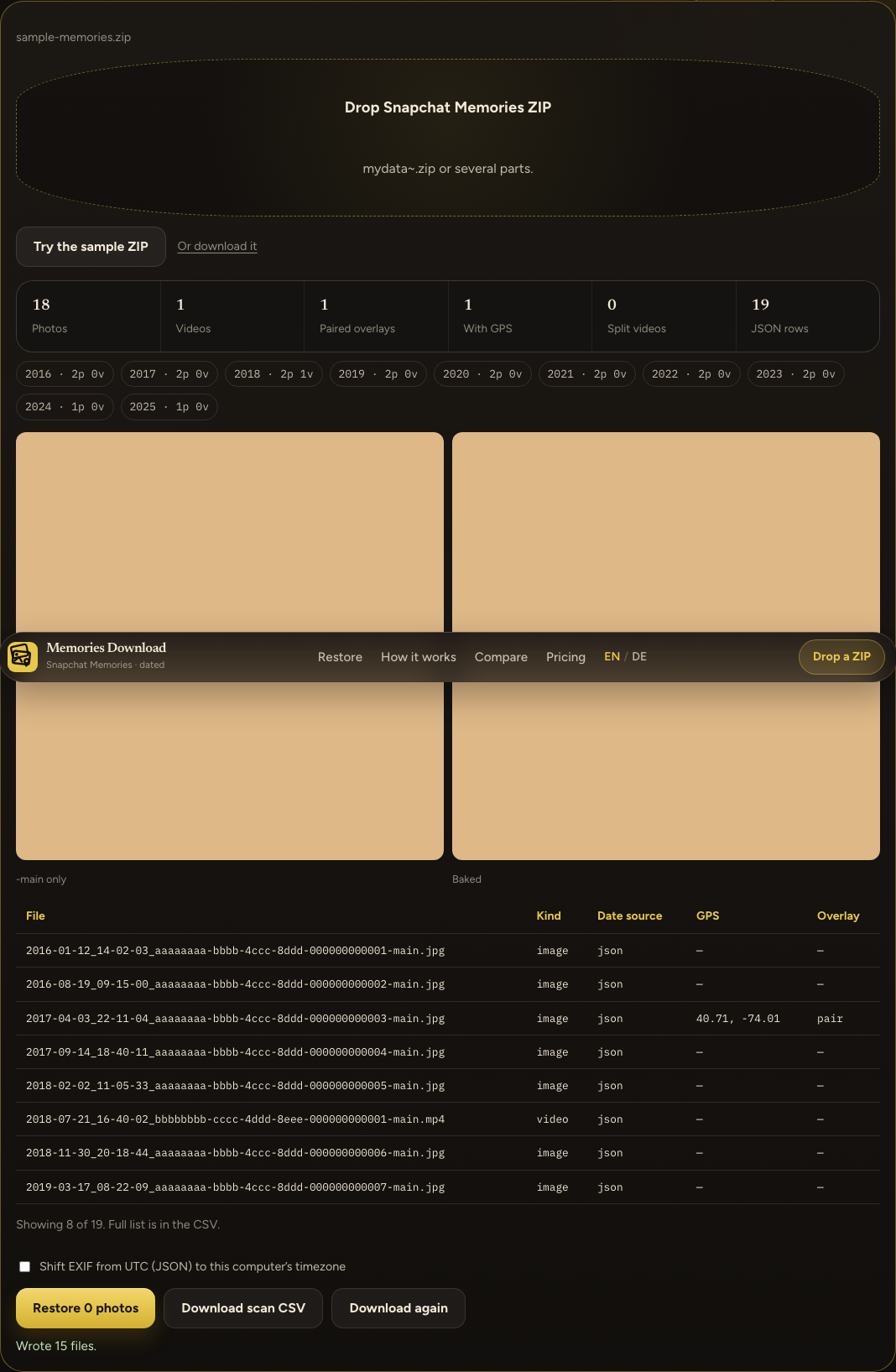
The browser saves snapchat-memories-with-dates-YYYY-MM-DD.zip (the date is the day you click). The sample file contained those JPEGs plus Snapchat-Memories/README.txt and Snapchat-Memories/restore-report.csv. Paths look like Snapchat-Memories/2017/04/2017-04-03_22-11-04.jpg. JPEG files get DateTime, DateTimeOriginal, DateTimeDigitized, and GPS when the matched JSON row had a location.
While the job runs, the status line reads Reading ZIP, then Checking quota, then Restoring plus the file name and a count. Those lines move too fast on a small ZIP to screenshot.
Download again uses the ZIP already built in this tab. Reloading the tab drops it.
The README inside the ZIP says to unzip and keep the year/month folders, upload that folder to Google Photos (the date comes from EXIF), drag it into Apple Photos (the map needs the GPS written from JSON), or copy the JPEGs to the camera roll. Do not import the original My Data ZIP if you want those dates.
When this browser has Pro
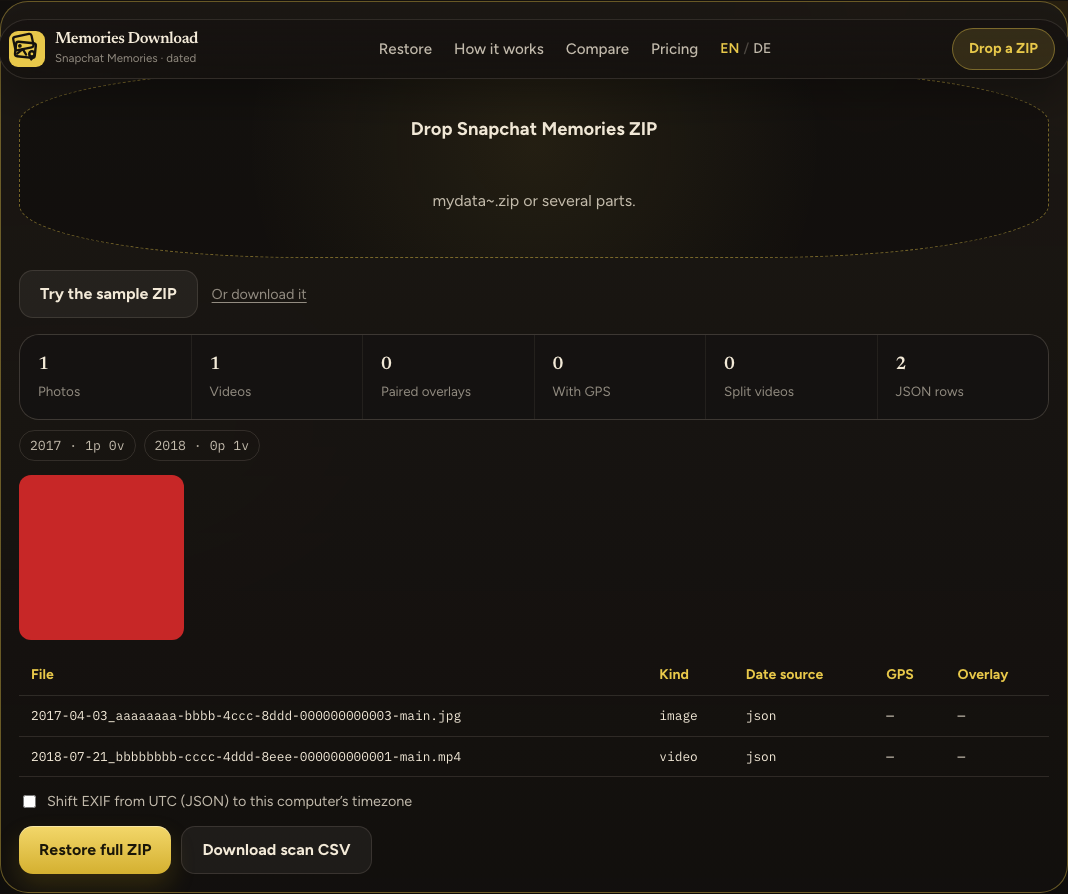
Before a file is added, the line under the box is how many Pro restores are left today. A fresh day starts at 40. The fixture run wrote 2018-07-21_16-40-02_video.mp4 beside the JPEG. MP4 files get QuickTime creation and modification times. Split clips are concatenated when that step succeeds, and otherwise written as dated _p1 and _p2 files. Unmatched overlay files are copied to Snapchat-Memories/unmatched-overlays/.
Messages from a bad file are on the errors page.
The search “when is Snap deleting memories” is When is Snap deleting memories?. This file is built by the download tool.